Careers Page Editor
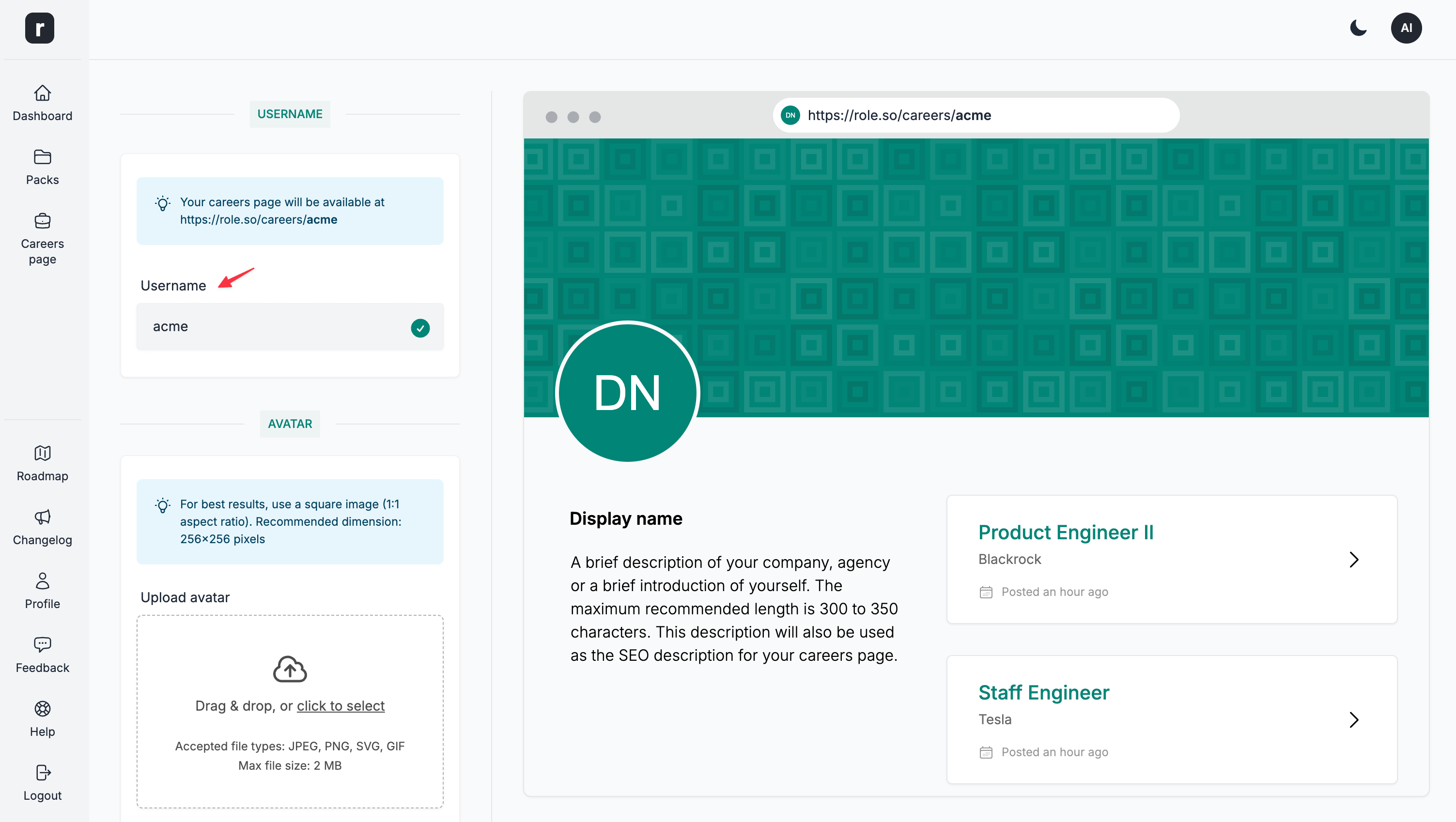
Username
Your careers page is available at different addresses depending on its scope and URL mode:
- A global page in legacy username mode:
https://role.so/careers/USERNAMEorhttps://YOUR-DOMAIN.com/careers/USERNAME. - A global page in organization-slug mode:
https://role.so/o/ORGANIZATION/careersorhttps://YOUR-DOMAIN.com/o/ORGANIZATION/careers. On a root custom domain, usehttps://YOUR-DOMAIN.com/careers. - A workspace page:
https://role.so/o/ORGANIZATION/c/WORKSPACEorhttps://YOUR-DOMAIN.com/o/ORGANIZATION/c/WORKSPACE. On a root custom domain, usehttps://YOUR-DOMAIN.com/c/WORKSPACE.
The username requirements and screenshot below apply only to a global page in legacy username mode. The username must be at least 3 characters, cannot exceed 50 characters and must only contain a-z, 0-9 and -.
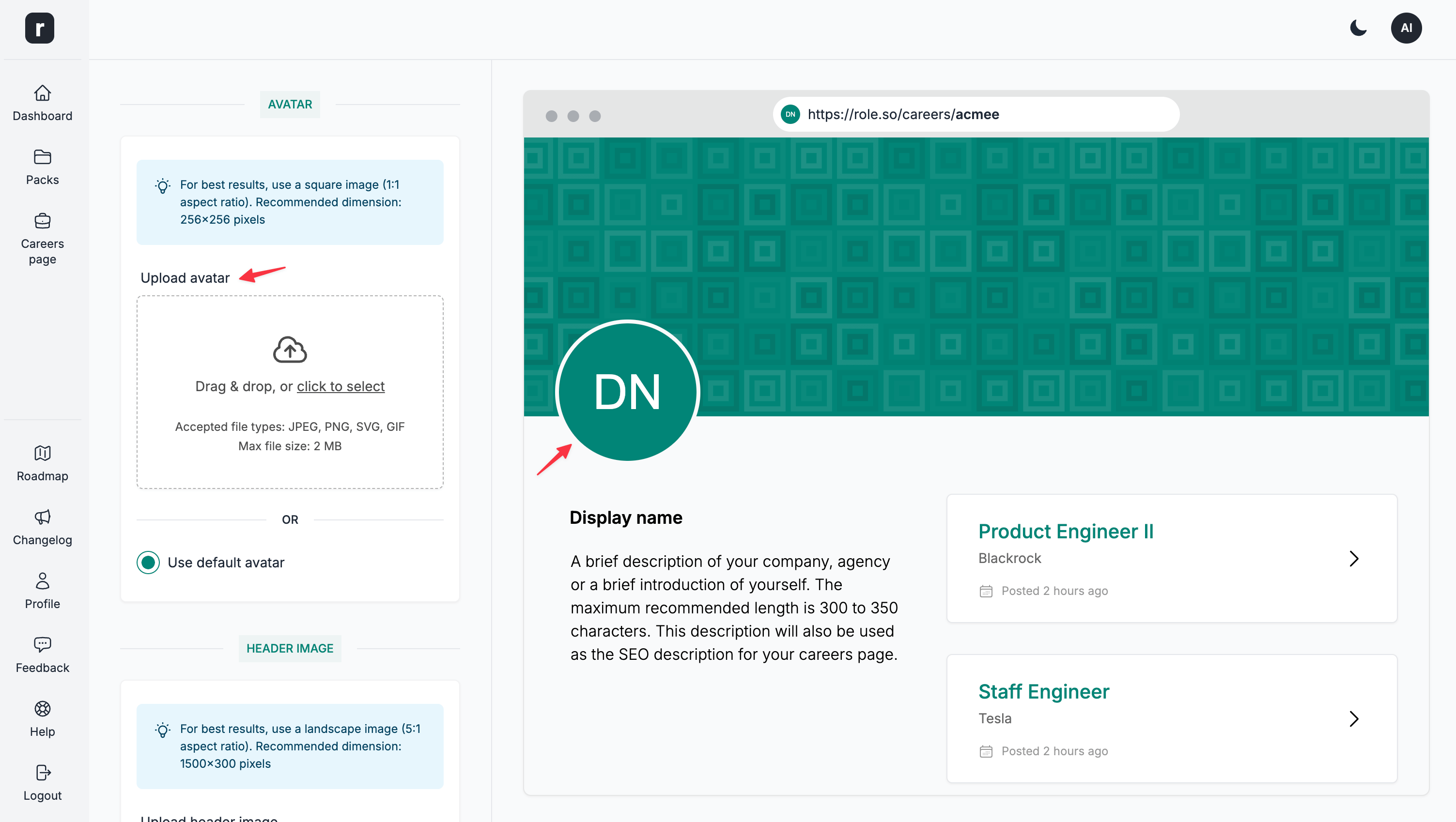
Avatar
Option to upload a custom avatar. Accepted file types: JPEG, PNG, WebP. Max file size: 4 MB.
This is an optional field. If you do not upload an avatar image, the platform generates one from the Careers Page Display name. If no display name is entered, it uses the default Display name value.
💡 For best results, use a square image (1:1 aspect ratio). Recommended dimension: 256x256 pixels
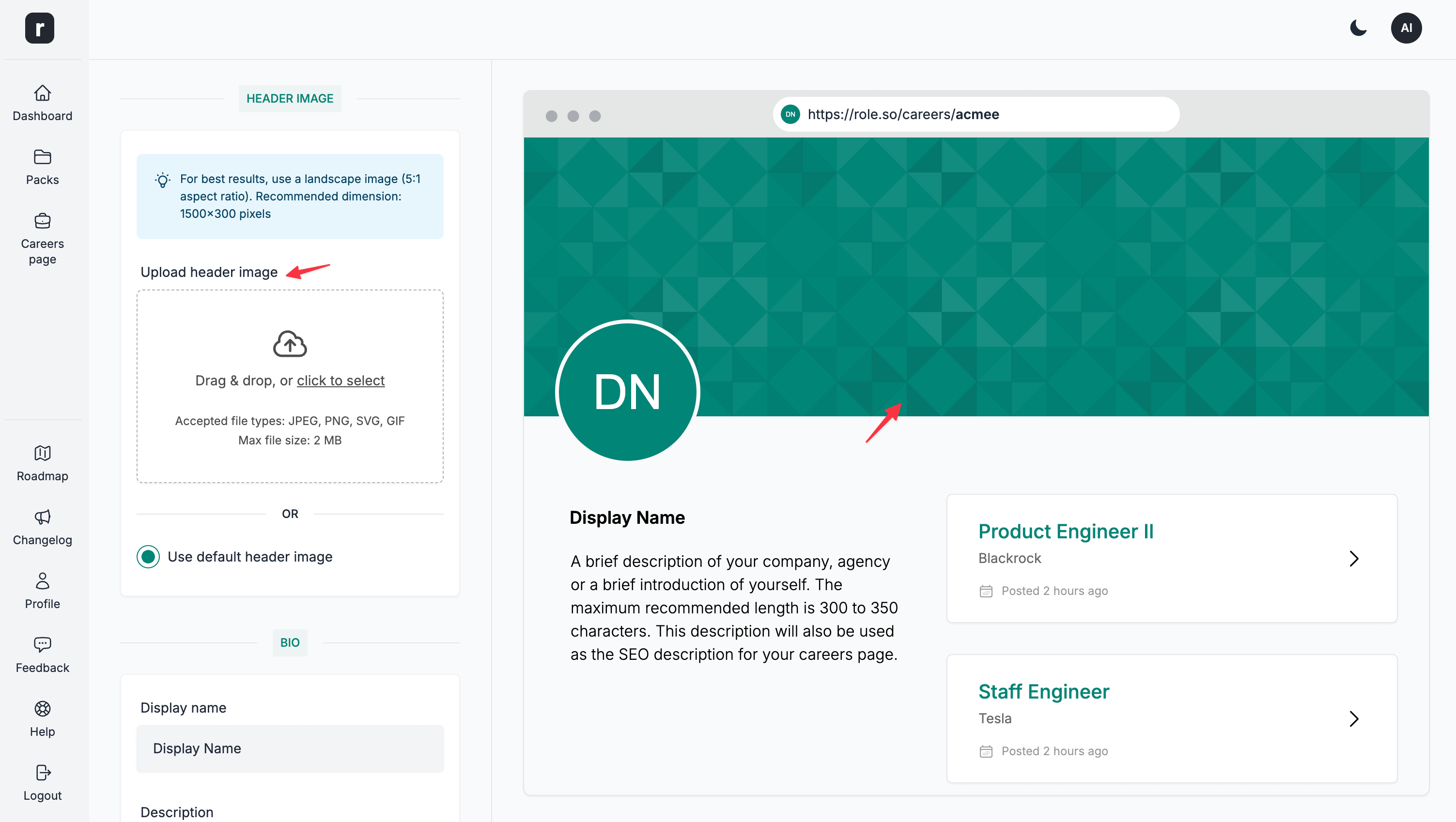
Header
Option to upload a custom header image. Accepted file types: JPEG, PNG, WebP. Max file size: 4 MB.
This is an optional field. If you chose not to upload a header image, the platform will generate a custom header image for you based on the Display name field.
💡 For best results, use a landscape image (5:1 aspect ratio). Recommended dimension: 1500x300 pixels
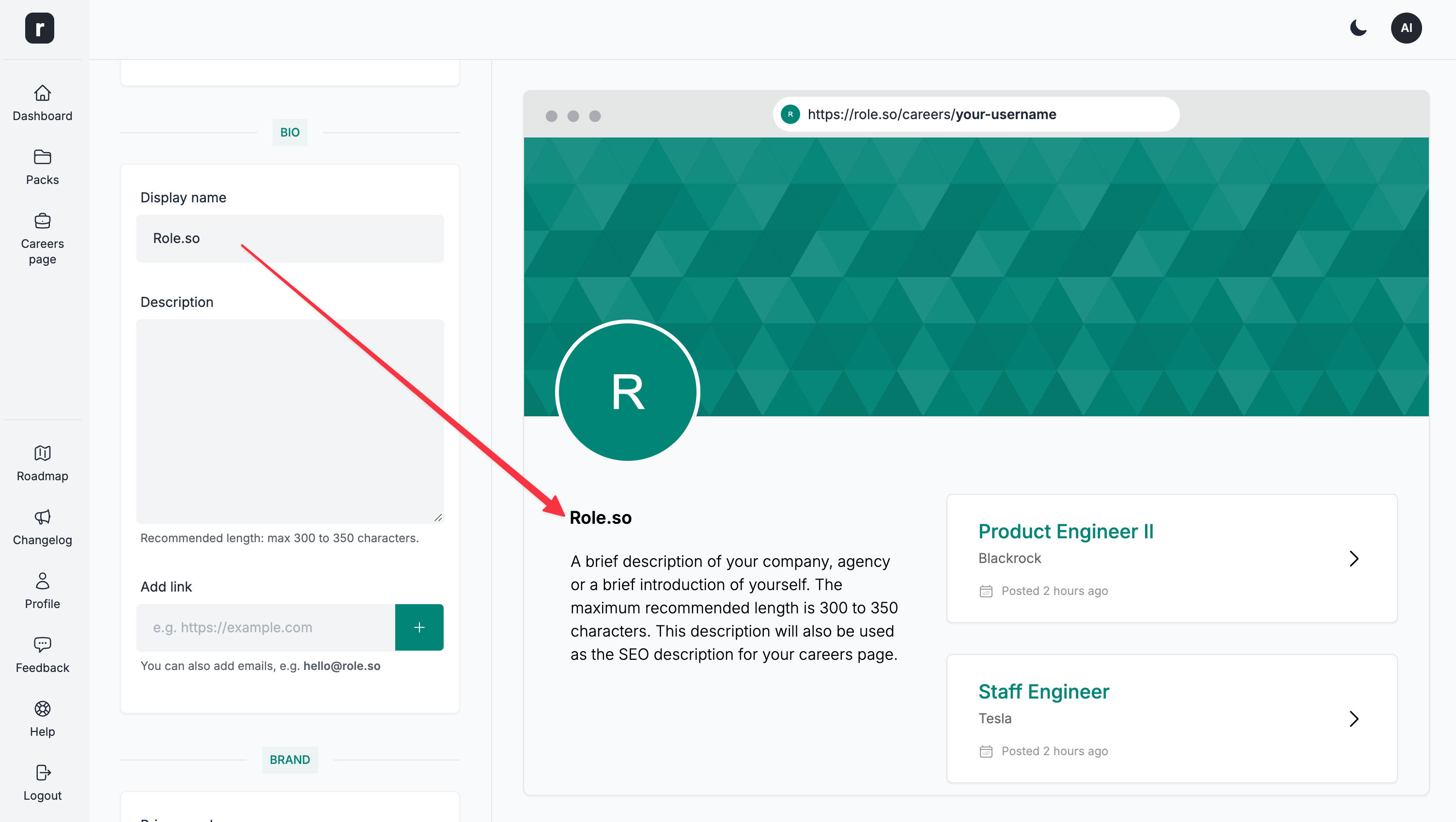
Display name
A name to be displayed in the bio section of the Careers Page.
Description
A brief description of your company, agency or a brief introduction of yourself. The maximum recommended length is 300 to 350 characters. This description will also be used as the SEO description for your Careers Page.
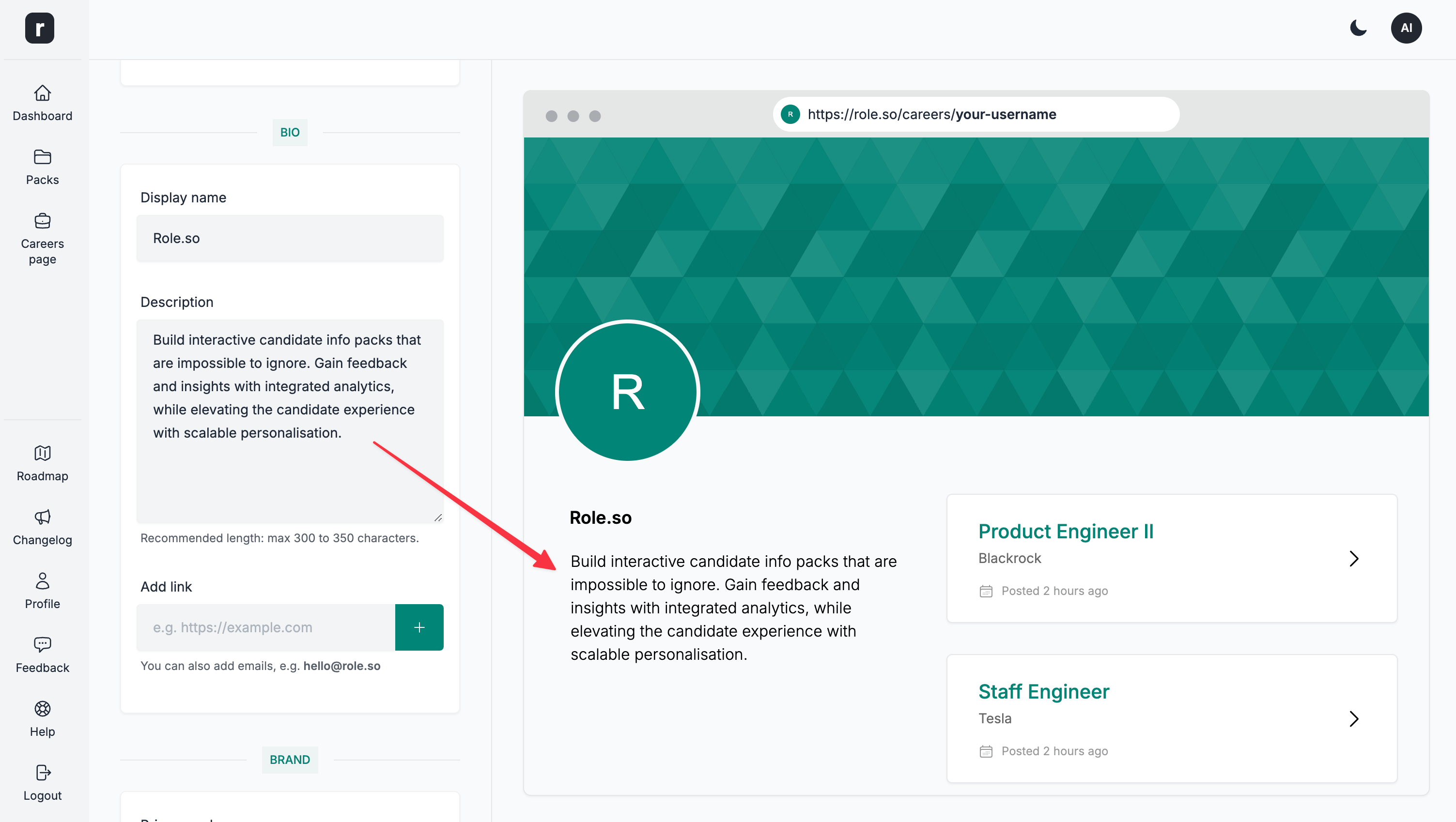
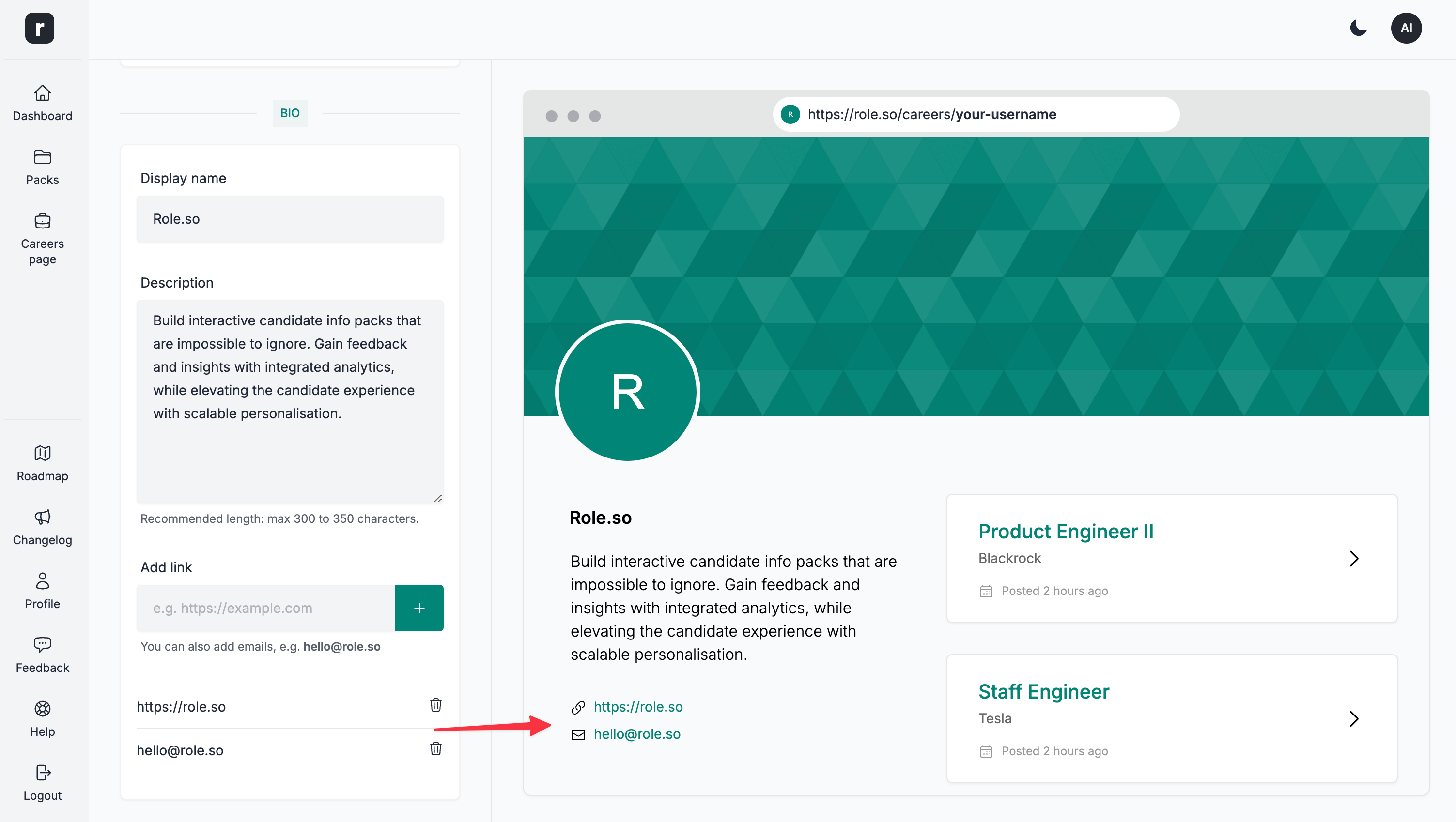
Links
Optional field to add links to your website, social media profiles or a contact email address. To add an email link, simply type in an email address.
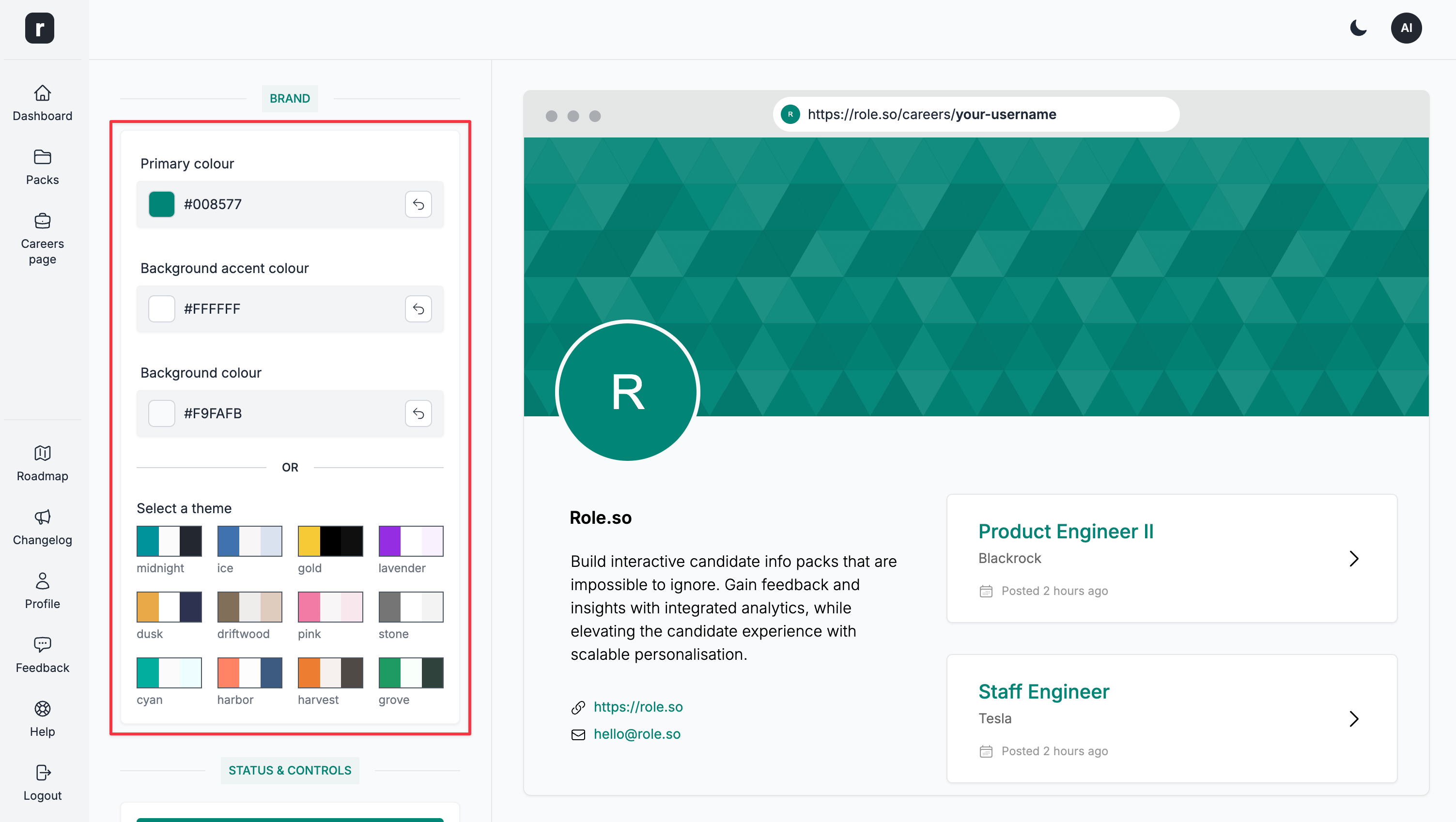
Brand
Similarly to the candidate packs, you can customise the look and feel of your Careers Page.
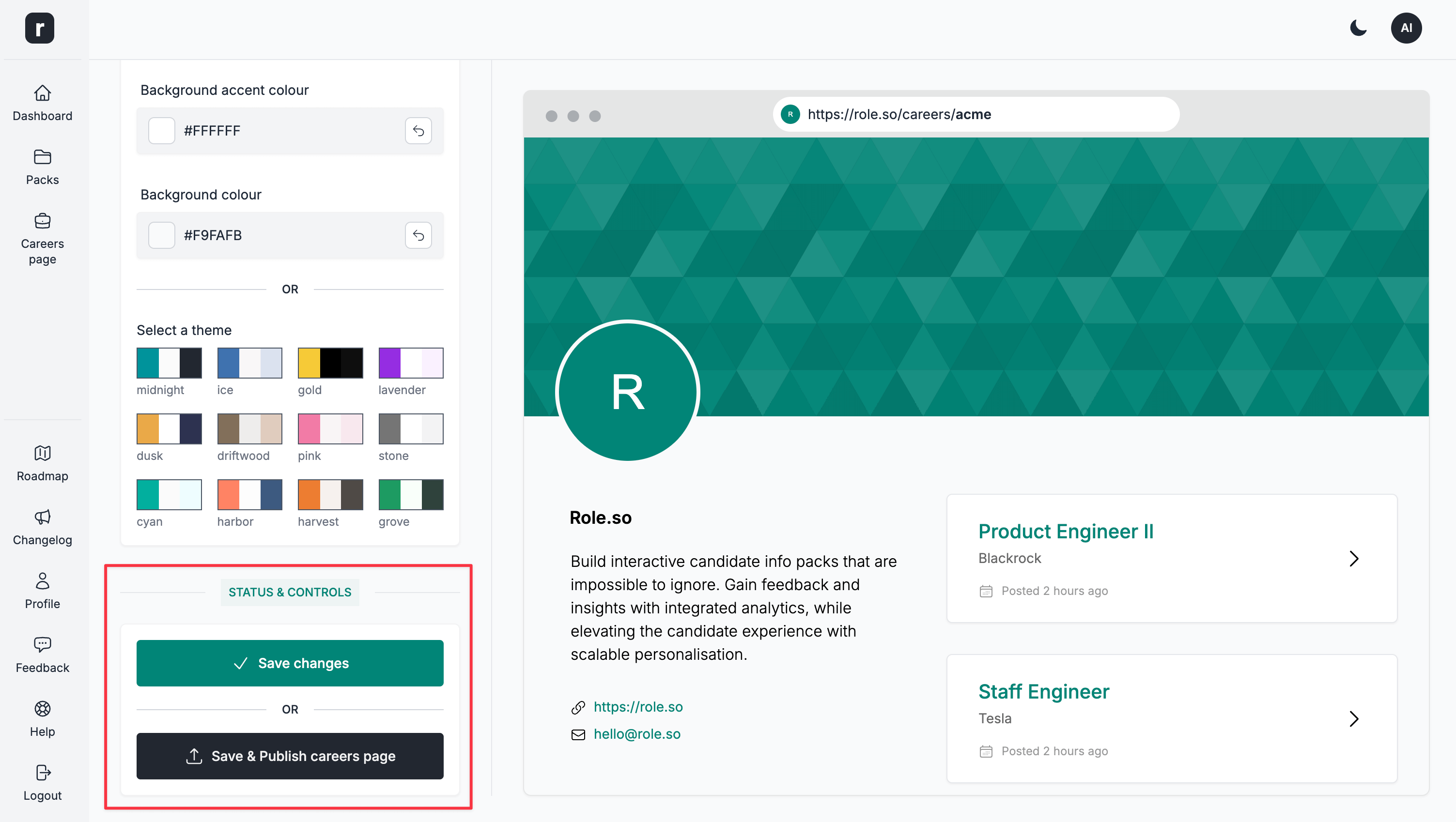
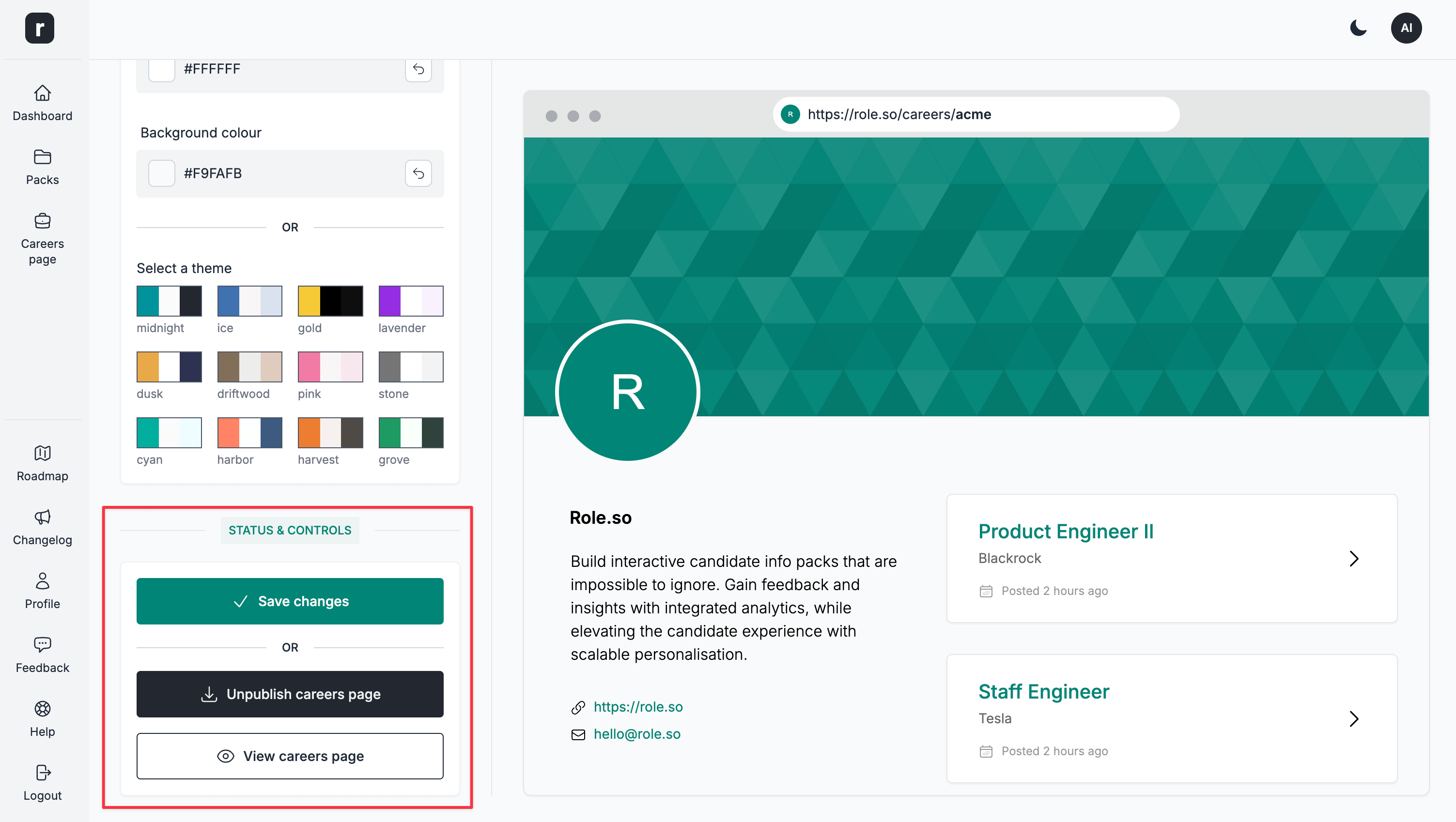
Status & Controls
This is where you can control the status of your Careers Page.
When a Careers Page is in draft mode, you can:
Save changes- save changes without publishingSave & Publish careers page- save and publish the careers page
When a Careers Page is published, you can:
Save changes- save changes, without affecting the status of the careers pageUnpublish careers page- move the careers page into draft modeView careers page- visit your public careers page
Choose which packs appear on careers pages
In the pack editor, open Settings → General, turn Show on careers pages on or off, then click Save changes. The setting applies to both organization and workspace careers pages and their previews. It is enabled by default, including for existing packs. Only published, non-archived packs with this setting enabled appear. A workspace page also limits the list to packs in that workspace.
Turning it off does not unpublish the pack or make it private: anyone with its direct or personalized link can still view it and apply while applications are open. The packs dashboard shows Hidden from careers pages for packs with this setting disabled.
Schedule application closing
In Settings → General → Application closing date, choose No closing date, Choose a date for this pack, or Use the linked job’s application deadline. Save your changes.
A custom date is inclusive: applications close at the end of that day in the timezone shown below the field. With a linked job, the pack follows its application deadline and the job’s timezone (UTC if none is set). Changes to the job deadline apply automatically. If the job has no application deadline, applications remain open. This setting is separate from the Google Jobs “valid through” date.
At the deadline, the pack disappears from careers pages and its previews, and its application buttons are replaced by Applications closed. Direct and personalized links still show the content. The server also rejects submissions from forms opened before closing. Existing packs keep accepting applications until a closing rule is explicitly selected. Choose No closing date or a future deadline to reopen applications.
Visibility and closing work independently. A hidden pack can still accept applications through its links until its deadline. At the deadline, applications close even if Show on careers pages is enabled. Reopening applications does not enable that visibility setting: a hidden pack stays hidden.
-
The linked-job option is available only when the pack is linked to a job. Without a job, choose a custom date or no closing date.
-
A date in the past closes applications as soon as you save. To accept applications again, remove the deadline or choose a future date (or update the job deadline when using inheritance).
-
The closed notice is displayed in the pack’s language, independently of the dashboard or browser language.
-
For example, a December 31 deadline closes applications on January 1 at 00:00 in the selected timezone.
-
Closing does not delete applications already received, archive the pack or unpublish it.